A PDF or EPUB is not an audiobook waiting to be renamed. The source text has to be extracted in the right order, divided into listenable chapters, narrated, checked, and encoded into an audio format. Skip the preparation and the narrator may faithfully read page numbers, footnotes, broken columns, and OCR mistakes aloud.
This guide shows a local workflow using OpenVox AI on Mac or Windows. You will check the source file, repair chapter boundaries, test a narrator, and export a finished audiobook. The AudioBook workflow offers M4A for straightforward listening and M4B for players that support embedded chapters. The release history describes the current export workflow.
Which audiobook format should you choose?
| Format | Best use | Tradeoff |
|---|---|---|
| M4A | A compact audio file for general listening | Chapter navigation varies by player |
| M4B | Audiobook apps that support embedded chapters and a book-style timeline | Some older or simpler players do not accept it |
If your player supports M4B and you want chapter navigation, choose M4B. Otherwise, M4A is a useful default. Test a short export in the app where you plan to listen before processing a long book. For a broader overview of OpenVox's book tools, see how to create audiobooks locally from PDF, EPUB, or text.
Step 1: make sure the book contains usable text
EPUB: check the contents and reading order
EPUB usually provides a better starting structure than PDF. EPUB 3 has a navigation document that identifies the table of contents and major sections, which can help with chapter detection. That does not mean every EPUB is clean. Open the file in a reader first and spot-check the beginning, a middle chapter, and the end. Watch for navigation entries that are not actual chapters, decorative drop caps that repeat a first letter, or notes that interrupt paragraphs. The W3C EPUB specificationdescribes the navigation document and its table of contents.
PDF: determine whether it is text or a scan
Try selecting and copying a sentence from the PDF into a plain text editor. If you cannot select meaningful text, or the pasted words are garbled, the pages may be scanned images or have a broken text layer. Run OCR before importing the document for narration. Adobe's Acrobat OCR guideexplains how a scan becomes searchable text and recommends reviewing the recognized result. OCR is not a repair-all step: check names, numbers, punctuation, and page edges after recognition.
Even a selectable PDF can have a bad reading order. Two-column layouts may alternate between columns, running headers can land inside a sentence, and footnotes may be inserted mid-paragraph. A short preview of the extracted text is more informative than how the page looks on screen. If a particular PDF extracts poorly, clean the text in an editor or obtain a properly structured EPUB rather than generating the whole book and discovering the problem in hour three.
Step 2: import and repair the chapter map
In OpenVox AI, open AudioBook, create a new book, and import the PDF or EPUB. Let automatic chapter detection build a first draft, then inspect it before generating any speech. The screenshot below shows the actual OpenVox audiobook workspace, not a generic audio mockup.
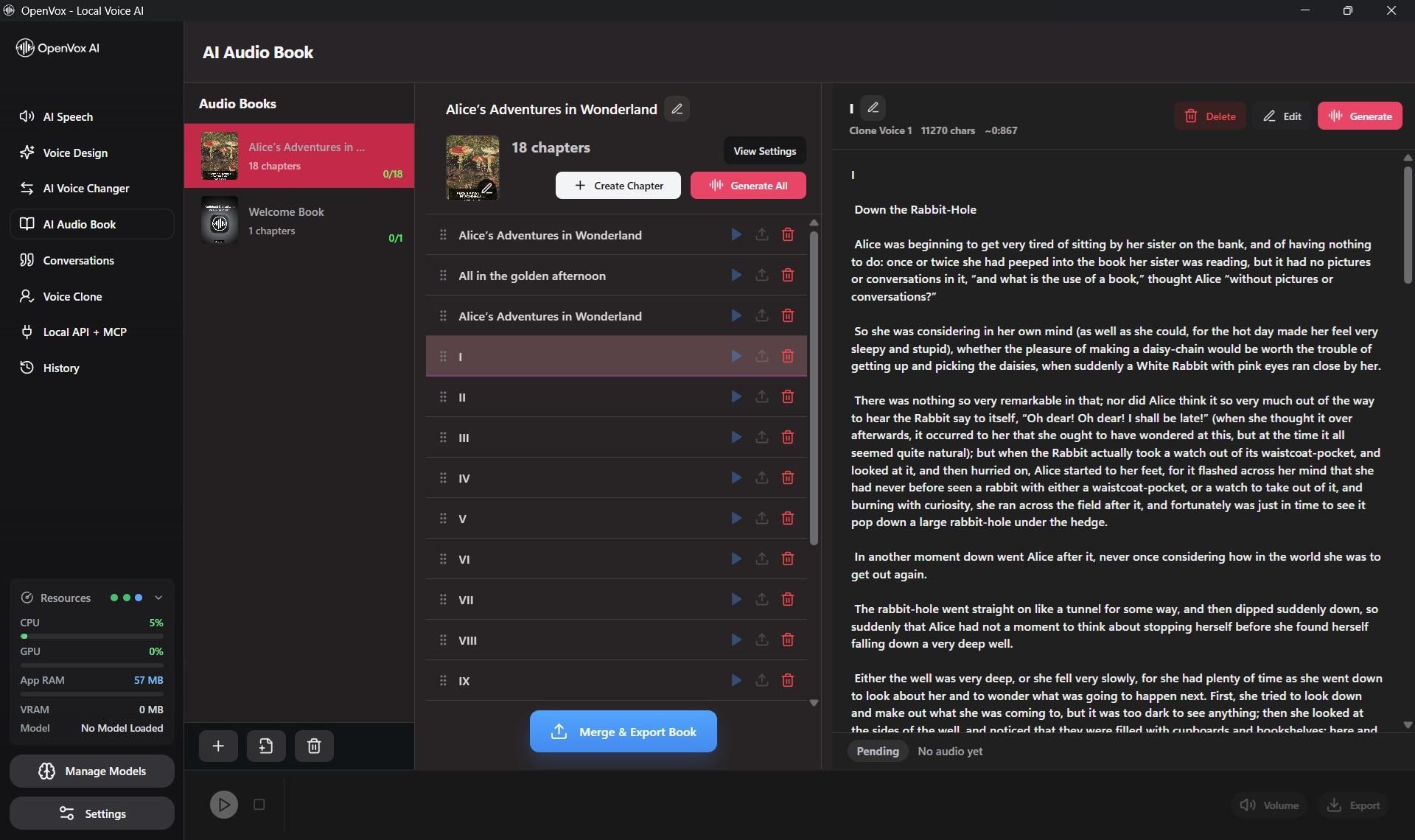
Correct the chapter names and order. Merge tiny fragments that should be one chapter, and split an oversized chapter at a natural heading rather than a page boundary. Remove front-matter you do not want narrated, duplicated table-of-contents text, references, or page furniture. For a textbook or manual, keep tables and formulas only if they make sense when heard; otherwise rewrite them into plain spoken explanations.
Chapter-sized work units matter for revisions. If chapter 7 contains a pronunciation mistake, you should be able to regenerate that section without redoing the entire book. Use descriptive chapter names now because those names will also help organize the exported audio later.
Step 3: choose a narrator and test one chapter
Select a local model and narrator voice, download the model if needed, and generate a short sample. The best voice for a 20-second demo is not necessarily the best voice for four hours of listening. Favor consistency, clear consonants, sensible pauses, and pronunciation of the book's recurring names over dramatic delivery in one sentence.
For fast revision-heavy work, Supertonic 3 and Kokoro-82M are useful starting points. If you need a permitted narrator clone or a different style, audition Qwen3-TTS, Chatterbox Multilingual, or another supported model. Model availability and speed vary by platform and hardware. Keep the same model, voice, and main settings across chapters unless the book deliberately changes narrators. See our reference voice guide if you use a clone, and get the speaker's consent first.
Listen to the first few minutes and one later paragraph. Check acronyms, quotations, names, dates, percentages, and paragraph boundaries. Make replacements or clean the source text before batch generation. If your PDF contains captions, equations, or citations that do not translate well to speech, decide whether to omit or rephrase them for a listening edition.
Step 4: generate and export the audiobook
- Generate a single cleaned chapter and listen to its beginning, middle, and end.
- Fix any text-extraction or pronunciation issue, then regenerate that chapter.
- Generate the remaining chapters. Batch generation is useful once the narrator and text are proven.
- Export M4A for a general-purpose audio master, or M4B if your player supports audiobook chapters.
- Keep the exported audiobook and the original book file so you can revise chapters later.
The current OpenVox Free tier allows 5,000 characters per day, enough to evaluate a short section. Pro costs $19.99 once per platform and removes the daily character limit, making long-form generation more practical. Pricing and license details are separate for Mac and Windows.
Keep the finished book easy to navigate
A long recording is only useful if you can find your place. Review the chapter list before export and choose M4B when your listening app supports embedded chapters. Open the finished file in that app and test a jump to an early, middle, and final chapter. If you prefer M4A for broader playback compatibility, keep the project in OpenVox so you can correct a chapter and export again instead of rebuilding the source document.
Keep one copy of the source PDF or EPUB and one copy of the exported audiobook in a clearly named folder. Include the book title, narrator or voice, and generation date in the folder name if you expect several revisions. Do not rely on a player's displayed title alone to tell different editions apart.
Quality-control checklist before sharing
- Text order: no duplicated headers, skipped paragraphs, repeated page numbers, or two-column jumps.
- Chapter integrity: every chapter starts and ends at a natural sentence boundary.
- Pronunciation: names, acronyms, currencies, formulas, and dates are spoken as intended.
- Voice consistency: the narrator does not change pitch, accent, or energy unexpectedly between chapters.
- Playback: open the exported audiobook in the actual target player and seek near the start, middle, and end.
- Metadata: verify title, author, chapter filenames, and cover art where applicable.
- Rights: convert and distribute only books and voices you have the rights to use. Do not bypass access controls.
A useful final test is to listen on the device and headphones you will actually use. A file that seeks correctly on a desktop may expose chapter or metadata quirks in a car stereo or older audiobook player.
Frequently asked questions
Which audiobook export format should I choose?
Choose M4A for straightforward listening or M4B if your audiobook player supports embedded chapters. Test a short export in your target player before generating a long book.
Why is my PDF audiobook reading nonsense?
The PDF may be a scan without OCR, or its text extraction order may not match the visual page. Check a copied paragraph in a plain text editor. OCR scanned pages and correct reading-order mistakes before narration.
Will an EPUB keep its chapters?
EPUB often contains a structural table of contents, but the imported chapter map still needs review. Use M4B if you want chapter navigation in a compatible audiobook player.
Does OpenVox upload my book to generate the narration?
No. After downloading a supported voice model, OpenVox generates the narration locally on your Mac or Windows PC. Keep the imported file and exported audiobook on your own device.
Can I turn a purchased, protected book into an audiobook?
This workflow assumes you have an accessible PDF or EPUB and the necessary rights to convert and use it. It does not provide a way to remove DRM or other access controls. Check the book's license and local rules before sharing an audiobook.
Sources and update note
Format and preparation guidance was checked against the W3C EPUB specification and Adobe's OCR documentation. OpenVox export behavior follows the site's audiobook release history and current pricing page. Checked November 6, 2026.