
SillyTavern can read character replies aloud, but the voice has to come from a TTS provider. On a Mac, OpenVox can fill that role: it runs the speech model locally and exposes an OpenAI-compatible speech endpoint that SillyTavern can call. With Pocket TTS, you can save a cloned voice in OpenVox and assign it to a character in SillyTavern.
“Unlimited” here means OpenVox Pro removes OpenVox’s daily generation and voice clone limits on the purchased platform. The Free tier has a daily character allowance. Local generation avoids a per-request cloud speech fee, but your Mac still needs time and resources to synthesize each reply. Your SillyTavern chat model may have separate costs or limits.
The connection at a glance
SillyTavern reply → OpenVox at 127.0.0.1:8001 → Pocket TTS saved voice → spoken audio in chat
Port 8001 is the example shown in OpenVox’s Connect SillyTavern screen. Use the port your own OpenVox app displays if you changed it.
What you need
- A compatible Mac with OpenVox installed and SillyTavern running on the same Mac.
- Pocket TTS downloaded in OpenVox for the cloned-voice path.
- A clean voice recording that you own or have permission to clone.
- OpenVox Pro if you want generation beyond the Free daily allowance.
You can first test the connection with a ready-made Kokoro or Supertonic 3 voice. Choose Pocket TTS when you want to use a saved cloned voice, as indicated by OpenVox’s SillyTavern setup screen.
Step 1: create and save a voice in OpenVox
- Open Voice Studio → Voice Clone in OpenVox.
- Select Pocket TTS, then provide a clear sample of one speaker. Follow the prompts in your installed app to create the voice.
- Listen to a short test sentence and save the clone with a name you will recognize in SillyTavern.
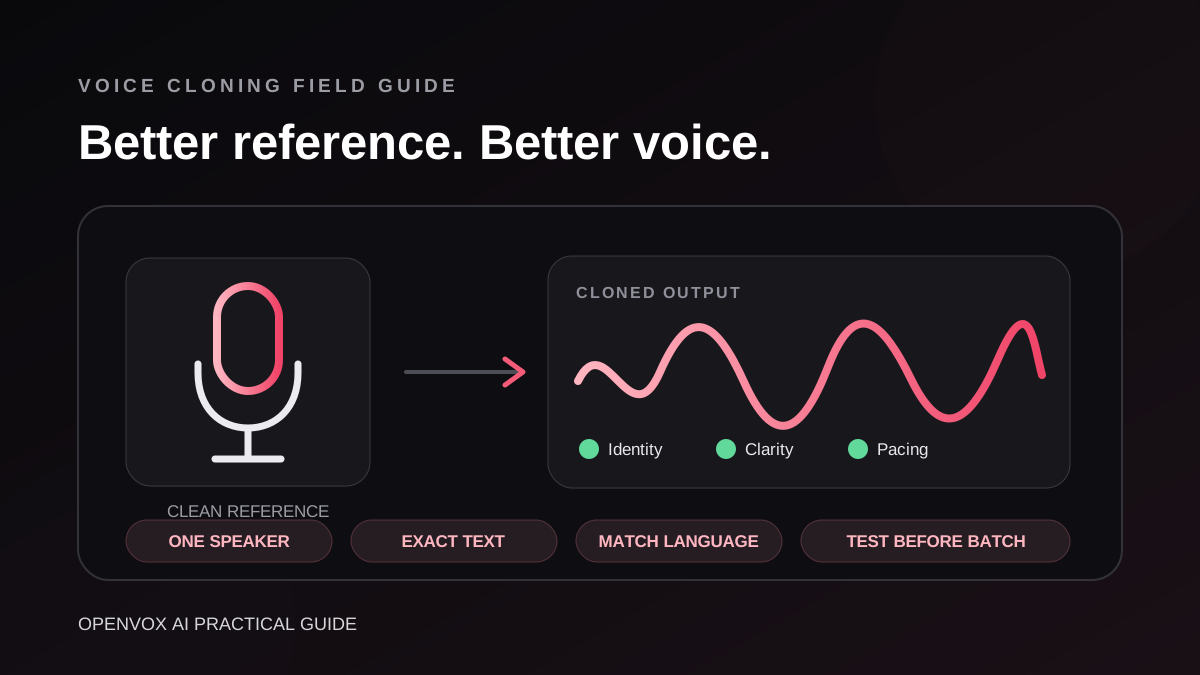
A quiet recording with no music, overlapping speech, or heavy room echo gives the model a better reference. For recording tips, see our voice cloning guide. Only clone your own voice or one you have explicit permission to use.
Step 2: start the OpenVox local API
- In OpenVox, open Local API + MCP and start the server.
- Check the Base URL and Runtime Status. In the pictured setup, the base URL is
http://127.0.0.1:8001/v1. - Open Connect SillyTavern and select the Pocket TTS tab.
- Keep that window open so you can copy its Provider Endpoint, Model, and Available Voices values exactly.
The speech endpoint for the pictured port is http://127.0.0.1:8001/v1/audio/speech. This is the Provider Endpoint SillyTavern needs. The shorter /v1 URL is OpenVox’s API base URL. SillyTavern commonly runs on port 8000, so give the two apps distinct ports. Both can use 127.0.0.1 when they run on the same Mac.
Step 3: fill in SillyTavern’s TTS settings
In SillyTavern, open Extensions → TTS, select OpenAI Compatible, and turn on Enabled. Copy the values from OpenVox’s Pocket TTS tab into the matching fields:
| SillyTavern field | What to enter |
|---|---|
| Provider Endpoint | The full OpenVox URL ending in /v1/audio/speech |
| Model | The model value shown on OpenVox’s Pocket TTS tab |
| Available Voices | The comma-separated list from that tab, including your saved voice |
| API Key | Leave blank for the local OpenVox server |
| TTS Speed | Start at 1.0 |
Copy the model and voice names from the app rather than guessing them; those values depend on the installed model and saved voices. After entering the fields, click Apply, then Reload or Refresh beside the TTS provider to populate the voice menus. SillyTavern’s TTS documentation notes that OpenAI-compatible providers may require you to enter the available voices manually.
Step 4: map your character’s voice and test it
- Open a chat with the character you want to voice.
- In SillyTavern’s TTS voice controls or Voice Map, assign that character your saved Pocket TTS voice.
- Click Apply after editing the voice map.
- Generate a short reply and play it with the message’s speaker icon.
- Turn on Auto Generation if you want new replies to play automatically.
If you switch the model or add another cloned voice later, update Available Voices and reload the SillyTavern TTS provider again. SillyTavern’s voice-map instructions also cover assigning different voices to different characters and user personas.
Quick fixes if you hear nothing
- Connection error: Confirm that OpenVox shows the server as running and that the endpoint uses OpenVox’s port and ends in
/v1/audio/speech. - No cloned voice in the dropdown: Save the voice in OpenVox, select Pocket TTS in its setup helper, paste the current Available Voices list, and reload SillyTavern.
- No automatic playback: Check Enabled and Auto Generation, then apply the settings and voice map.
- Wrong voice or pronunciation: Confirm the character’s Voice Map entry and test a cleaner reference recording.
- Using SillyTavern on another device:
127.0.0.1points to that device, not your Mac. This guide assumes both apps run on the same Mac.
Keep the voice local and use it responsibly
OpenVox generates the speech on your Mac after model setup, so the OpenVox speech step does not require a cloud TTS provider. Keep the server on loopback for this same-Mac setup. The privacy of your chat text also depends on the language model provider you choose in SillyTavern. For consent and permitted reuse, read our voice cloning ethics guide.