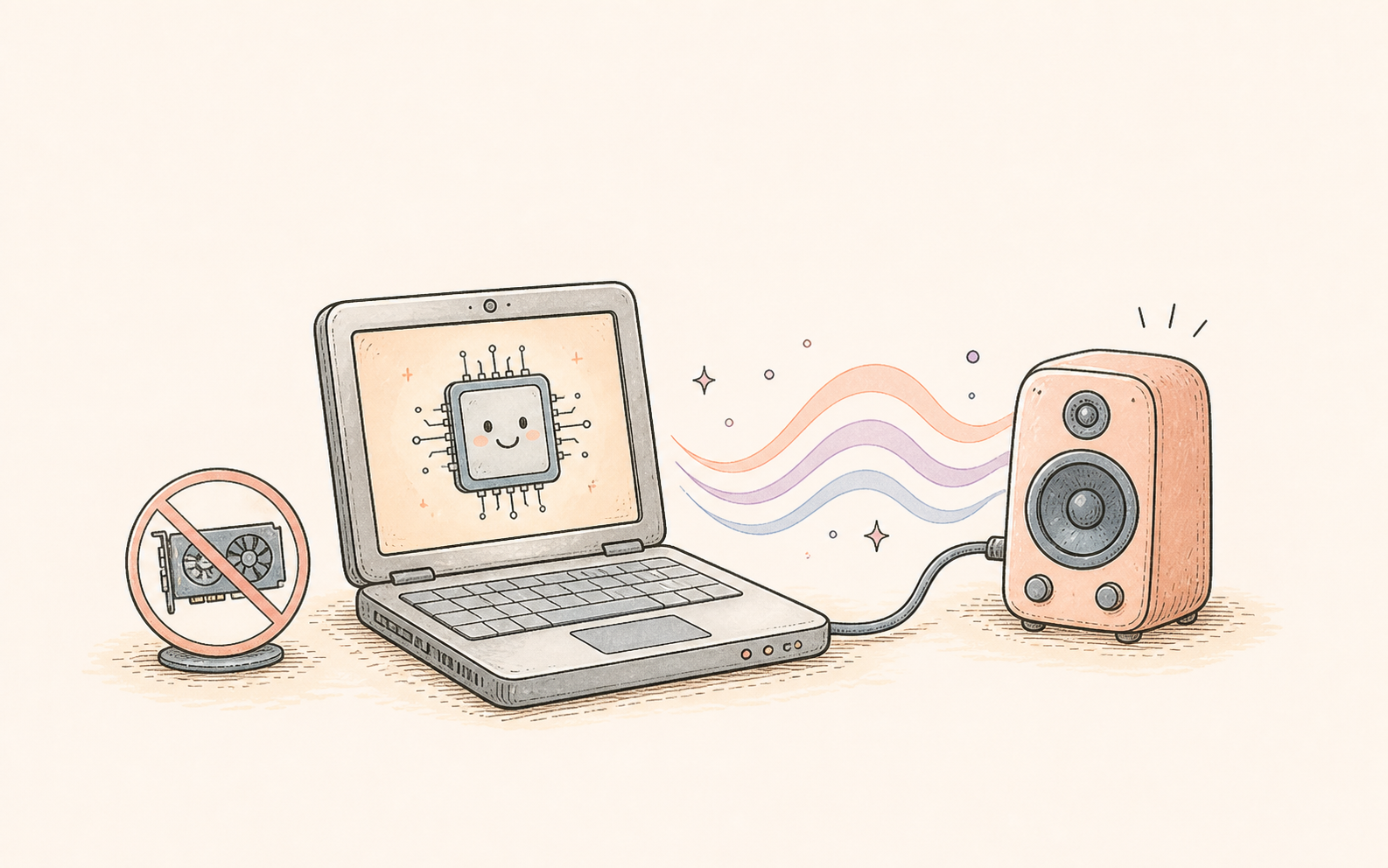

Yes, you can use AMD Radeon for local AI text to speech. OpenVox for Windows supports AMD ROCm alongside NVIDIA CUDA, bringing models such as Qwen3-TTS, OmniVoice, VibeVoice, and Chatterbox into a desktop voice workflow. With a compatible GPU and runtime, you can turn scripts into speech, clone a voice, and keep core generation on your own PC.
The starting point is your exact Radeon card and the runtime shipped with your OpenVox version. Once those match, the workflow is straightforward: download a model, choose a voice, generate a short sample, and build up to longer narration.
The AMD speech stack
OpenVox → supported TTS model → ROCm → Radeon GPU
Windows app, local model files, and AMD acceleration. Hardware compatibility and available VRAM determine which workloads fit.
Check AMD Radeon and Windows compatibility first
ROCm is AMD’s platform for GPU computing. OpenVox uses the AMD runtime for supported Radeon acceleration; NVIDIA acceleration uses CUDA. AMD publishes compatibility by GPU, operating system, and software release, so check the current AMD ROCm compatibility matrix against the runtime used by your app.
For native Windows PyTorch, AMD’s Radeon Windows matrix through ROCm 7.2.1 lists Windows 11 and selected cards, including RX 7900 XTX and RX 9070 XT. Treat these as examples from that release, rather than a complete list for every OpenVox build. Windows, WSL, and Linux support lists differ.
| Check | What to confirm |
|---|---|
| Exact GPU | Your full Radeon model appears in the applicable AMD support matrix. |
| Operating system | The AMD runtime supports your Windows version. The app’s Windows requirements and the GPU runtime’s requirements can differ. |
| Driver and runtime | The AMD driver is compatible with the ROCm release used by OpenVox. |
| Model availability | The model and its runtime are available in your installed Windows app. |
| Memory | There is enough free VRAM and system RAM for the selected checkpoint and workload. |
A larger VRAM number alone does not establish software support. If your card is outside the supported configuration, you can still explore CPU-friendly local TTS before deciding whether a hardware upgrade is worthwhile.
Which TTS model should you run on Radeon?
Choose by the output you need. These model families differ in languages, voice controls, and narration style. Their upstream features describe the models; your installed OpenVox checkpoint determines which controls are available in the app.
| Model | Good starting use | Selection tip |
|---|---|---|
| Qwen3-TTS | Multilingual narration and voice cloning | Check the checkpoint: Base, CustomVoice, and VoiceDesign have different capabilities. |
| OmniVoice | Broad language coverage and reusable cloned voices | Test your target language and pronunciation with a short reference. |
| VibeVoice TTS | Longer conversational audio and speaker workflows | Available on Windows in OpenVox; increase script length gradually. |
| Chatterbox Turbo / Multilingual | Expressive voice cloning and short spoken content | Use Turbo for English; choose the multilingual variant for other supported languages. |
Qwen3-TTS: choose the checkpoint for your voice task
Qwen3-TTS supports ten languages and has 0.6B and 1.7B variants. Base checkpoints support reference-audio cloning; CustomVoice and VoiceDesign serve different voice workflows. Start with the smaller compatible option available in OpenVox when memory is limited, then compare quality on your own script. See the official Qwen3-TTS model descriptions.
OmniVoice: explore multilingual voice cloning
OmniVoice’s upstream project describes support for more than 600 languages, reference-based cloning, and voice design. It is useful when a script needs language coverage beyond a smaller voice catalog. Test names, numbers, and mixed-language phrases before generating a full document. See the official OmniVoice project.
VibeVoice: build longer conversational audio
Microsoft describes VibeVoice TTS as a model family for expressive, long-form speech, with capabilities up to 90 minutes and four speakers. Those are model-level capabilities, not a promise that every Radeon card can generate a 90-minute session. Start with a brief exchange and check memory before extending it. VibeVoice TTS is Windows-only in OpenVox. See the official VibeVoice project.
Chatterbox: pick English Turbo or Multilingual
Chatterbox Turbo is an English speech model designed for efficient generation and expressive output. Chatterbox’s multilingual family covers more than 20 languages. Pick the variant that matches your script, then compare speaker identity and pacing with a short clone sample. See the official Chatterbox project.
How to set up OpenVox TTS on AMD Radeon
1. Install OpenVox for Windows and a compatible AMD driver
Download the Windows app and install it on your x64 PC. Match your Radeon driver to the requirements of the AMD runtime used by the app, using AMD’s compatibility documentation above. Complete any runtime setup requested by OpenVox before loading a model.
Use the supported AMD runtime supplied or required by your OpenVox build. Replacing its Python packages with a generic CUDA installation can break the environment. If the app cannot detect your card, resolve the GPU, driver, and runtime match before downloading more models.
2. Download one model in Manage Models
Open Manage Models, choose Qwen3-TTS, OmniVoice, VibeVoice TTS, or a Chatterbox variant available in your Windows build, and download its required files. Start with one model so that the initial download and memory checks are easy to follow.
The first load can take longer than later generations because model files must be read and the runtime initialized. Allow loading to finish before judging generation speed.
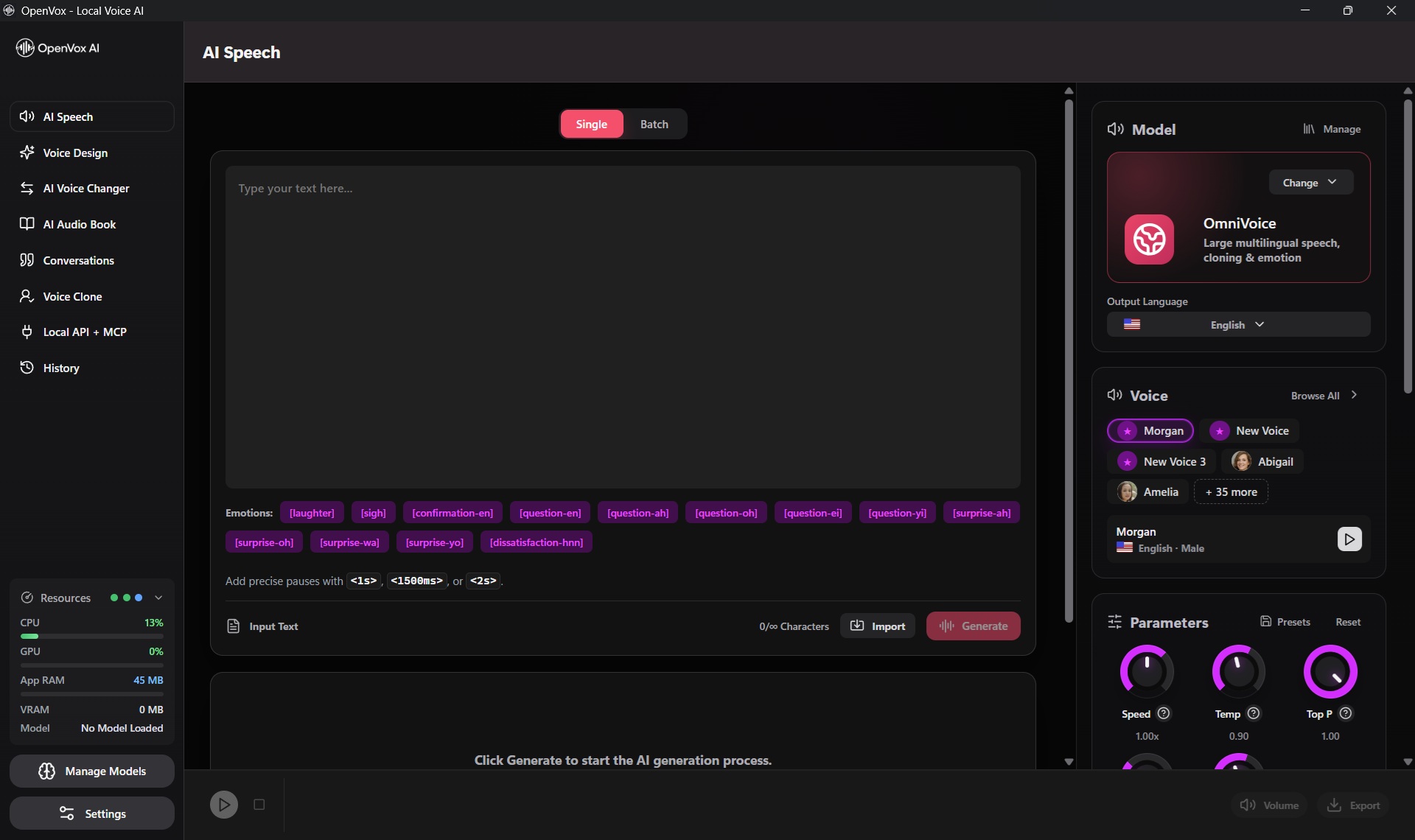
3. Generate a short sample in AI Speech
Open AI Speech, choose the downloaded model, select a supported language and voice, and enter one or two sentences. Leave generation parameters at their defaults for the first test, then click Generate.
Hello! This is a local voice test on my Windows PC. I am checking pronunciation, pacing, and audio quality before generating a longer script.
Listen for missing words, unusual pauses, and pronunciation. Check the app’s resource information and any available runtime diagnostics during generation. GPU memory use helps identify activity, but a GPU percentage alone does not prove which backend generated the audio.
4. Create and reuse a cloned voice
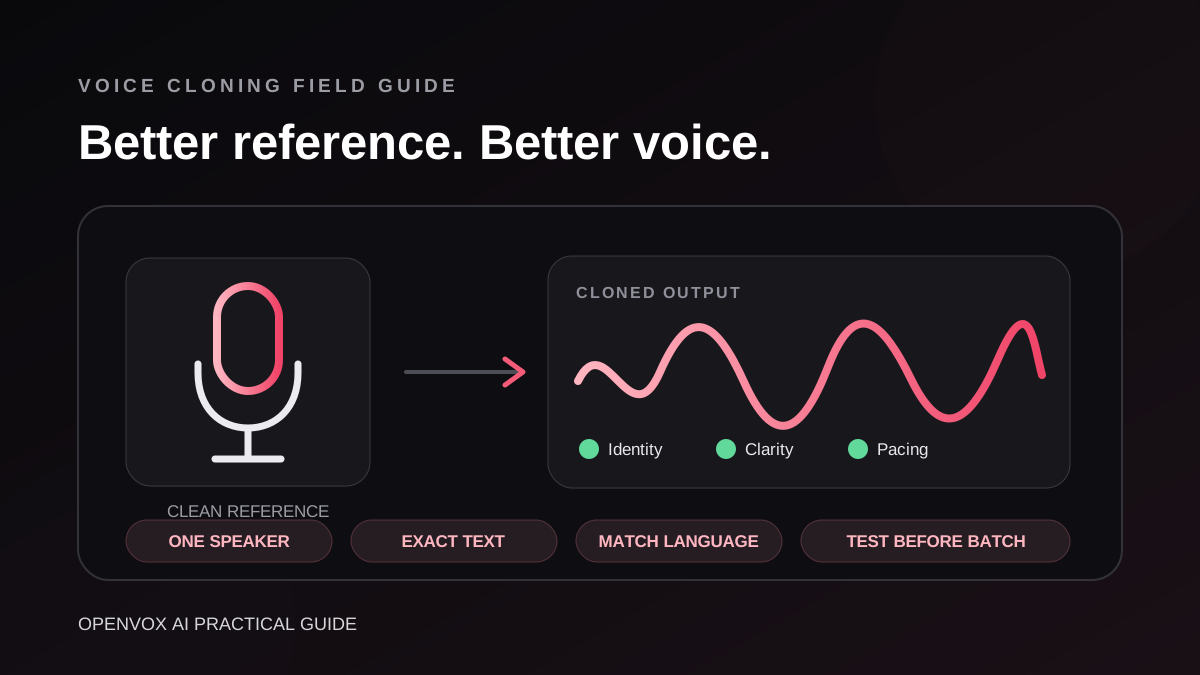
Open Voice Clone and select a cloning-capable model available in your build. Import a clean recording of a single speaker whose voice you have permission to use. If the workflow asks for reference text, transcribe the recording accurately, including the spoken words in their original language.
Use a recording without music, overlapping speakers, or strong room echo. Preview the result with a short script, save the voice, and use it with the compatible model in AI Speech. Saved voices are model-dependent; switching from Qwen3-TTS to Chatterbox can require a separate clone.
For a detailed recording workflow, see how to get better voice cloning results.
How to improve Radeon TTS performance
Begin with a working short sample, then change one thing at a time. A model’s published benchmark on another GPU is not a reliable speed estimate for your Radeon PC.
- Keep one large model loaded. Close other local AI tools and memory-heavy games before testing.
- Choose a smaller checkpoint when available. Model size affects memory use, but parameter count alone cannot predict total runtime memory.
- Split long narration at natural boundaries. Generate paragraphs or sections, checking continuity before assembling a full recording.
- Use a clean, focused voice reference. Extra silence or unrelated audio adds work without improving the sample.
- Keep the app’s supported precision and backend settings. CUDA-specific optimizations from an upstream example may not work in the AMD runtime.
- Compare runs after the model has loaded. Measure first-load time separately from subsequent generation time.
- Record the configuration. Note your GPU, VRAM, driver, app version, model, and script when comparing results or asking for support.
For a simple personal measurement, divide generation time by audio duration. A 30-second generation producing 60 seconds of audio has a real-time factor of 0.5. Use the same script and voice for comparisons. This is a measurement example, not an OpenVox Radeon benchmark.
Fix common AMD ROCm and TTS problems
| Problem | What to try |
|---|---|
| Radeon is not detected | Check the exact GPU, native Windows requirements, driver, and app runtime version. Restart after a driver update. |
| Generation uses CPU | Check that the AMD runtime is available and the selected model supports that backend in your app version. |
| Out-of-memory error | Unload other models, close competing GPU workloads, shorten the script, or choose a smaller supported model. |
| First generation is slow | Wait for initialization, then compare a second run separately. Keep the same model loaded. |
| Clone sounds inconsistent | Use one speaker, remove noise and music, verify reference text, and test with the intended language. |
| A model or control is missing | Check the installed Windows version and model variant. Upstream features may not all be exposed in your app build. |
One confusing detail: AMD PyTorch can still use names such as torch.cuda and cuda:0. PyTorch’s HIP backend deliberately reuses that interface, so the word “cuda” in a device string does not automatically mean NVIDIA hardware is required. See PyTorch’s HIP semantics documentation.
What can you create with local Radeon TTS?
Use a reusable voice for video narration, short character dialogue, multilingual scripts, and private document reading. For longer projects, preview pronunciation and speaker consistency section by section before exporting the finished audio.
If you are connecting an assistant or automation, OpenVox also provides a local API. Establish a working model and voice in the app first, then follow the local TTS API guide. The speech model handles audio generation; a separate text model can supply the script.
After downloading required files, core speech generation stays local. OpenVox has a free daily allowance, with unlimited generation through a one-time Windows Pro purchase. See current OpenVox pricing for the plan details.
Frequently asked questions
Can I run AI text to speech on an AMD Radeon GPU?
Yes. OpenVox for Windows supports AMD GPU acceleration through ROCm for compatible Radeon GPUs and supported model runtimes. Check your exact GPU, Windows version, driver, and the ROCm version used by the app before choosing a model.
Do I need an NVIDIA GPU to run Qwen3-TTS or Chatterbox in OpenVox?
No. OpenVox for Windows supports AMD ROCm as well as NVIDIA CUDA. A compatible Radeon GPU can accelerate supported models through the AMD runtime. CPU generation is also available, although larger models can take longer.
Does every Radeon RX GPU support ROCm on Windows?
No. Radeon branding alone does not establish compatibility. AMD support depends on the exact GPU and software release. Native Windows, WSL, and Linux have separate compatibility requirements; use the matrix that matches the runtime you are running.
How much VRAM do I need for these TTS models?
There is no single VRAM requirement for all four model families. Memory use depends on the checkpoint, precision, runtime, reference audio, and generated sequence length. Start with one model and a short sentence, then increase the workload while monitoring memory.
Is Qwen3 the same as Qwen3-TTS?
No. This guide covers Qwen3-TTS, the speech generation model family. A general Qwen3 text model does not replace the TTS model needed to generate audio in OpenVox.
Can I use VibeVoice in OpenVox on Mac?
VibeVoice TTS is currently a Windows-only model in OpenVox. This article covers the Windows app and AMD Radeon runtime. Availability in the upstream VibeVoice project does not establish availability in every OpenVox platform build.
Can I generate speech offline without a subscription?
Yes. Once the required models and runtime files are downloaded, core speech generation runs locally. OpenVox offers a free daily allowance and a one-time Windows Pro purchase for unlimited generation. Unlimited usage does not remove the memory and speed limits of your PC.
Start with one voice and one short script
Check your Radeon configuration, install OpenVox for Windows, and download a model that fits your language and voice task. Start with Qwen3-TTS for checkpoint-based voice workflows, OmniVoice for broad language coverage, VibeVoice for conversational narration, or Chatterbox for expressive cloning. Confirm the short sample works before building a longer project.
Published October 4, 2026. Model descriptions are based on the linked official projects. GPU support depends on the AMD runtime included with your OpenVox build; this guide does not report hands-on Radeon benchmarks.