OpenClaw is designed to run agents that can use tools, connect to chat channels, call model providers, and keep a gateway running in the background. A Mac mini is a natural host for that style of setup: it can stay plugged in, run quietly, and sit on your network as a small private automation box.
The exact OpenClaw ecosystem is moving quickly, so this guide uses the current official installation flow as the baseline: install with the OpenClaw script or global package, run onboarding, verify the gateway, then layer on channels, tools, and voice. Treat it as a practical checklist rather than a one-click promise.
The safest OpenClaw Mac mini setup is boring: a dedicated macOS user, minimum permissions, a verified gateway, restricted tools, and local voice output that does not create another cloud dependency.
What you need before you start
For a normal OpenClaw setup using hosted LLMs, even a base Apple Silicon Mac mini can be enough. If you also plan to run local LLMs, browser automation, transcription, or multiple agents at once, choose more memory. The goal is not just to install OpenClaw; it is to keep the machine stable while it runs unattended.
| Requirement | Practical recommendation | Why it matters |
|---|---|---|
| Mac | Apple Silicon Mac mini, ideally M2 or newer. | Quiet, efficient, and reliable for always-on gateway use. |
| Memory | 16 GB for API-based agents; 24 GB or more for heavier local model experiments. | Agents, browsers, local models, and media services all compete for memory. |
| macOS | Keep macOS current and use a supported release for OpenClaw. | OpenClaw docs list macOS as a supported platform, and current Node support matters. |
| Node | Node 24 recommended, or Node 22.14+ at minimum. | OpenClaw's official installer can handle Node, but existing installs should be checked. |
| Network | Ethernet if possible, static DHCP reservation if you can. | Your agent gateway is easier to reach and monitor when the address stays stable. |
Prepare the Mac mini
Start by creating a separate macOS user for OpenClaw. This keeps files, browser sessions, tokens, and automation permissions away from your everyday account. If you are using the Mac mini as a dedicated agent host, you can also make this the account that logs in automatically after restart.
- Create a dedicated user such as
openclaw. - Install all macOS updates before adding agent tooling.
- Turn on FileVault if the machine may be physically accessible to others.
- Enable Remote Login only if you need SSH access.
- Use Energy settings to prevent the Mac mini from sleeping during gateway hours.
On a dedicated box, it is common to prevent computer sleep while still allowing the display to sleep:
sudo systemsetup -setcomputersleep Never
sudo systemsetup -setdisplaysleep 5
If those commands are restricted by your macOS version or management profile, use System Settings instead: Battery or Energy Saver settings on older macOS versions, and Lock Screen or Displays settings on newer ones.
Install OpenClaw
The official OpenClaw documentation recommends the installer script for the fastest setup. It detects the operating system, installs Node if needed, installs OpenClaw, and launches onboarding.
curl -fsSL https://openclaw.ai/install.sh | bashIf you already manage Node yourself, the docs also describe a global package install:
npm install -g openclaw@latest
openclaw onboard --install-daemon
During onboarding, choose the model provider you want to use. OpenClaw supports many providers, including Anthropic, OpenAI, Google, OpenRouter, Ollama, LM Studio, and other local or hosted backends. For a first setup, pick one reliable provider and confirm basic chat behavior before connecting higher-risk tools.
Verify the gateway
After installation, verify the CLI, configuration, and gateway state. These checks are useful because a broken background service can look like a model problem when it is really a gateway problem.
openclaw --version
openclaw doctor
openclaw gateway status| Check | Healthy result | If it fails |
|---|---|---|
openclaw --version | The CLI prints a version. | Check your global npm path or reinstall through the official installer. |
openclaw doctor | No critical configuration errors. | Fix provider keys, config paths, or missing runtime dependencies. |
openclaw gateway status | The gateway is running. | Run onboarding with daemon install, or restart the gateway from the CLI/UI. |
Choose a model provider
OpenClaw separates the agent runtime from the model provider. That means your Mac mini can run the gateway while the model itself comes from Claude, OpenAI, Gemini, OpenRouter, Ollama, LM Studio, or another configured backend. The official provider docs describe the default model shape as a provider/model value in the agent defaults.
{
  "agents": {
    "defaults": {
      "model": {
        "primary": "anthropic/claude-opus-4-6"
      }
    }
  }
}
Use a hosted frontier model if you want maximum reasoning quality with less maintenance. Use Ollama or LM Studio if your goal is more local control and you are comfortable tuning model size, context length, and performance.
Connect channels carefully
OpenClaw becomes much more useful when connected to channels such as Telegram, WhatsApp, Discord, Slack, Mattermost, WebChat, or macOS-specific integrations. It also becomes riskier. A chat channel turns the agent from something you test in a terminal into something that can receive live instructions.
Start with one channel, one allowlisted user, and low-risk tasks. For example, test status updates, reminders, or read-only research before you let an agent touch email, files, browsers, or external accounts.
Do not give a new agent broad permissions on day one. Let it prove predictable behavior on small tasks before it gets access to anything expensive, private, or hard to undo.
Lock down tools and permissions
OpenClaw tools are the agent's hands. The docs describe built-in tools for command execution, browser use, file editing, web search, messaging, media generation, nodes, sessions, and more. That flexibility is powerful, but a Mac mini agent should start with a narrow permission set.
| Capability | Start with | Why |
|---|---|---|
| Messaging | Allow only the channel you are testing. | Prevents surprises across unrelated accounts. |
| Exec | Deny or require allowlists/approvals. | Shell access is the highest-risk local capability. |
| Browser automation | Use a separate browser profile. | Keeps personal logins away from experimental agents. |
| File access | Use a dedicated workspace folder. | Reduces accidental reads or edits outside the agent project. |
Add voice with the OpenVox local API
A text-only OpenClaw agent is useful, but a voice-enabled agent feels much more natural for status updates, reminders, accessibility workflows, kiosks, classroom demos, and personal assistants. The voice pipeline is simple: the user sends or speaks a prompt, OpenClaw produces a text response, then OpenVox turns that response into audio locally on the Mac.
OpenVox is a good fit here because it runs core speech generation on Apple Silicon and is designed for local API use from apps, agents, and automations. With OpenVox Pro, you can generate unlimited local speech without per-character cloud billing, which matters when an always-on agent talks frequently.
Install OpenVox first
Before wiring voice into OpenClaw, install OpenVox on the Mac mini from the Mac App Store so you have the local models, native app updates, and the local API available on the same machine.
Download OpenVox
Install from the Mac App Store, open the app once, and download the local model packages you want to use before connecting OpenClaw.


OpenClaw agent response
  -> local webhook or script
  -> OpenVox local API on the Mac mini
  -> audio file or playback
  -> channel reply, speaker output, or dashboard notification
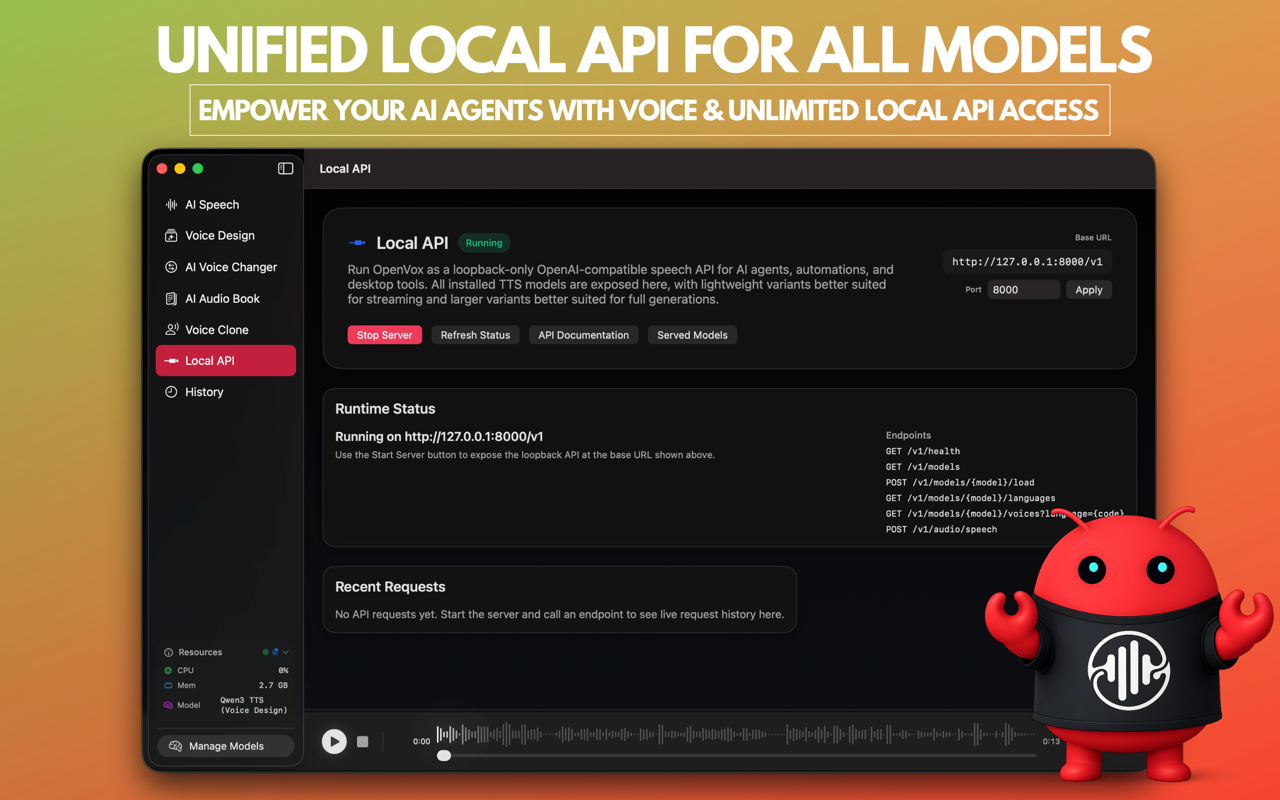
The OpenVox local voice API is hosted at http://127.0.0.1:8000/v1. Keep it on loopback unless you deliberately need LAN access. The important detail is that an agent should not guess model, language, or voice names. It should discover what OpenVox exposes, load the model, choose a valid language and voice, then synthesize audio.
| OpenClaw use case | OpenVox model choice | Why it fits |
|---|---|---|
| Fast personal assistant replies | Kokoro | Lightweight and responsive for frequent short responses. |
| Natural assistant persona | Chatterbox | Better expressiveness and cloning-oriented workflows. |
| Multilingual agent output | OmniVoice | Broad language coverage for global or classroom use. |
| Custom branded voice | Qwen3 TTS + Voice Design | Create reusable local voices for a consistent agent identity. |
The correct OpenVox API flow
A reliable OpenClaw voice integration should follow the same order every time. First discover model IDs, then warm the model, then ask OpenVox which languages and voices are valid for that model. The final speech request should reuse the same language code that was used to select the voice.
Here is the OpenClaw plus OpenVox local voice flow on Mac.
- Call
GET /modelsto discover available model IDs. - Before first use of a model, call
POST /models/{model}/loadto warm it. - Call
GET /models/{model}/languagesto find valid language codes. - Call
GET /models/{model}/voices?language={code}and choose a compatible voice. - Call
POST /audio/speechwithmodel,input,language,voice, andresponse_format.
OPENVOX_API="http://127.0.0.1:8000/v1"

# 1. Discover model ids
curl "$OPENVOX_API/models"

# 2. Warm the model before first generation
curl -X POST "$OPENVOX_API/models/kokoro/load"

# 3. Confirm supported languages for that model
curl "$OPENVOX_API/models/kokoro/languages"

# 4. Pick a voice that belongs to the same model and language
curl "$OPENVOX_API/models/kokoro/voices?language=en"

# 5. Generate a complete WAV file
curl -X POST "$OPENVOX_API/audio/speech" \
  -H "Content-Type: application/json" \
  -d '{
    "model": "kokoro",
    "input": "OpenClaw finished the research task.",
    "language": "en",
    "voice": "af_bella",
    "response_format": "wav"
  }' \
  --output openclaw-reply.wav
For real-time or incremental playback, use the same /audio/speech endpoint with stream=true. The response is sent as server-sent events. Your client should handle events named response.created, audio.chunk, and response.completed. Each audio.chunk.data.audio value is base64-encoded WAV data, so decode it before playback.
curl -N -X POST "http://127.0.0.1:8000/v1/audio/speech" \
  -H "Content-Type: application/json" \
  -d '{
    "model": "chatterbox-turbo-small",
    "language": "en",
    "input": "OpenClaw is now speaking this response locally.",
    "stream": true
  }'
Agent instruction to add to OpenClaw
Add an instruction like this to the agent or skill that handles audible feedback. It tells OpenClaw to treat audio as an extra output channel, while keeping the written answer authoritative.
You can use a local voice API hosted by OpenVox at http://127.0.0.1:8000/v1.

Your job is to add speech output to your own responses when voice is requested or when a workflow calls for audible feedback.

Rules:
1. Start by calling GET /models to discover available model ids.
2. Before the first speech request for a model, call POST /models/{model}/load to warm it.
3. Call GET /models/{model}/languages to determine valid languages for that model.
4. Call GET /models/{model}/voices?language={code} to choose a compatible voice for that language.
5. Reuse the same language code in the POST /audio/speech body so the chosen voice and synthesis language stay aligned.
6. For a complete audio file, call POST /audio/speech with JSON containing model, input, language, voice, and response_format=wav.
7. For incremental playback, call POST /audio/speech with stream=true and parse SSE events named response.created, audio.chunk, and response.completed.
8. Treat audio.chunk.data.audio as base64-encoded WAV data and decode it before playback.
9. If the API returns 429, wait and retry because only one generation or preload job can run at a time.
10. If a requested voice is missing, fetch the voice list again for the same model and language and select a valid replacement instead of guessing.
11. If the server is unavailable, continue in text mode and explain that local voice output is currently unavailable.

Suggested speech request body:
{
  "model": "kokoro",
  "input": "Your spoken reply text here",
  "language": "en",
  "voice": "af_bella",
  "response_format": "wav"
}

Suggested streaming request body:
{
  "model": "chatterbox-turbo-small",
  "language": "en",
  "input": "Your spoken reply text here",
  "stream": true
}

Always keep the user's text response authoritative. Audio is an additional output channel, not a substitute for correctness.
The error handling matters. If OpenVox returns 429, do not treat it as a permanent failure. Wait and retry because the local server only runs one generation or preload job at a time. If a preferred voice is not available, fetch the voice list again for the same model and language, then choose a valid replacement. If the server is unavailable, the agent should continue in text mode and say that local voice output is unavailable.
For voice agents, local TTS is not just about privacy. It also removes the habit of counting every spoken sentence against a monthly API quota.
Run the Mac mini safely 24/7
Once the gateway, provider, channel, and voice path work, make the setup boring and repeatable. Document what is installed, where tokens live, which tools are enabled, which channels are connected, and how to restart the gateway after macOS updates.
- Use a UPS if the Mac mini is important to your workflow.
- Keep model and channel credentials in the dedicated OpenClaw user account.
- Review OpenClaw logs after adding any new tool or channel.
- Keep OpenVox running only on trusted local interfaces.
- Test recovery after a reboot before relying on the agent remotely.
Troubleshooting checklist
| Problem | Likely cause | Fix |
|---|---|---|
openclaw command not found | Global npm bin path is missing from your shell path. | Check npm prefix -g and add the bin directory to ~/.zshrc. |
| Gateway is not running | Daemon was not installed or failed after reboot. | Run onboarding with daemon install, then check openclaw gateway status. |
| Agent answers text but no audio plays | The OpenVox local API is not running at 127.0.0.1:8000, or the selected model is not loaded. | Start OpenVox, test GET /v1/models, then call POST /v1/models/{model}/load. |
| Channel receives messages from the wrong users | Allowlist or channel policy is too broad. | Restrict the channel to known users while testing. |
Final recommendation
Set up OpenClaw in stages. First get the Mac mini stable. Then install OpenClaw and verify the gateway. Then add one model provider. Then add one channel. Only after the text agent behaves predictably should you add local voice output through OpenVox.
That staged approach gives you the best version of the Mac mini agent idea: an always-on OpenClaw host that can respond in natural speech, keep generation local, and avoid turning every spoken reply into another cloud TTS invoice.