Text to speech is one of the most useful features already sitting inside macOS. It can help you proofread a draft, listen to a long article while you work, review an email before sending it, or make the computer easier to use when reading on-screen text is tiring.
The built-in Mac tools are best for simple listening and accessibility. They are quick, reliable, and available without installing anything. But there is a difference between having your Mac read text aloud and producing polished speech for a video, podcast, app, language lesson, or client deliverable.
macOS spoken content is excellent for personal reading. Dedicated TTS software is better when the voice itself becomes part of the finished work.
Start with the built-in Mac Read & Speak settings
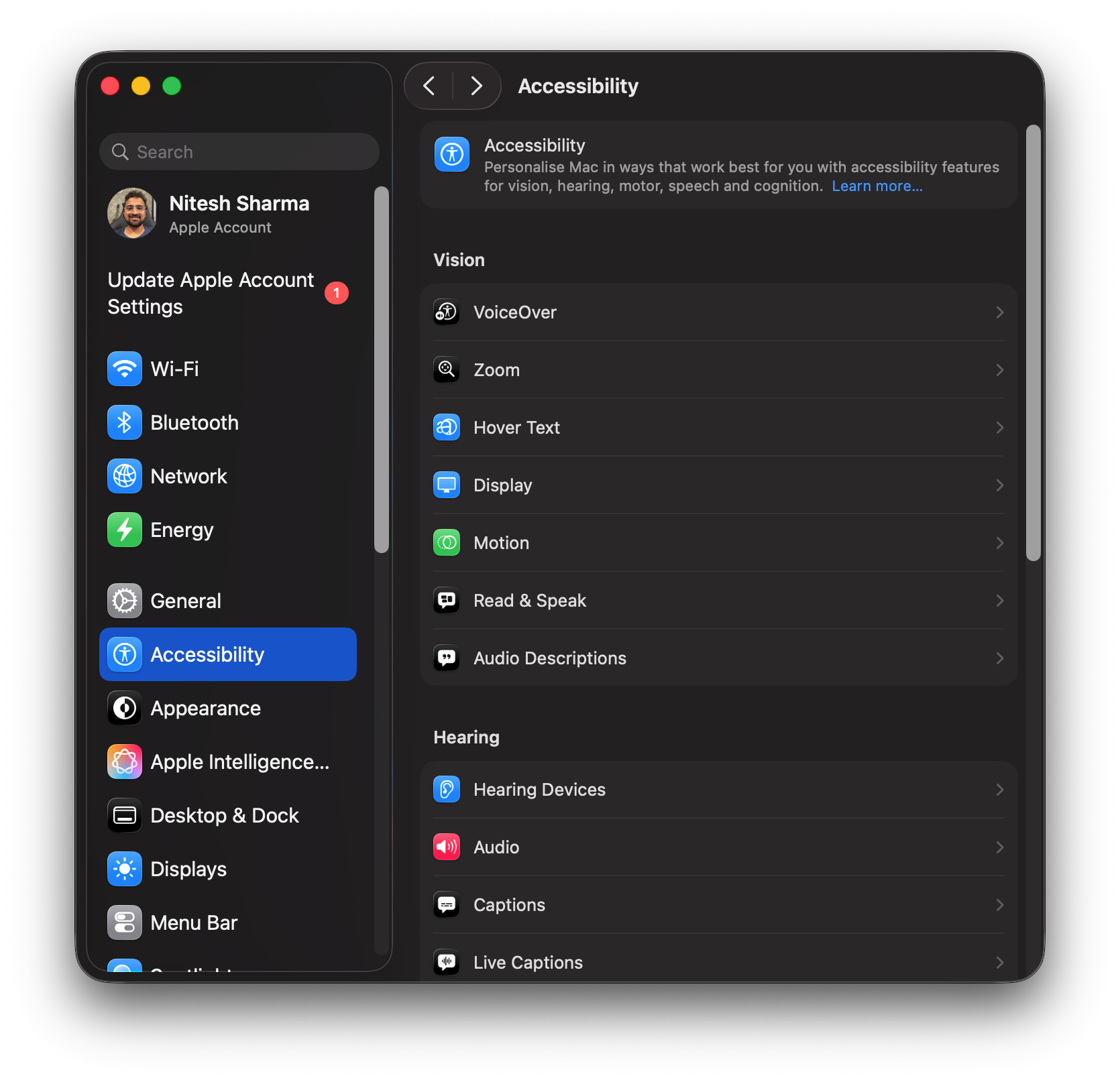
Apple places text-to-speech controls inside Accessibility settings. The exact labels can vary slightly by macOS version, but the path is usually the same: open System Settings, choose Accessibility, then select Read & Speak (Spoken Content on older Macs).
| Setting | What it does | Best used for |
|---|---|---|
| Speak Selection | Reads highlighted text when you press a keyboard shortcut. | Articles, emails, documents, notes, and web pages. |
| System Voice | Controls which voice macOS uses for spoken content. | Choosing a voice that is easier or more pleasant to listen to. |
| Speaking Rate | Changes how fast the selected voice reads. | Slower proofreading or faster information review. |
| Highlight Content | Highlights words or sentences while they are spoken. | Following along visually while listening. |
Turn on Speak Selection
Speak Selection is the easiest way to make your Mac read text aloud. Once it is enabled, you can select text in most apps and trigger speech with a shortcut.
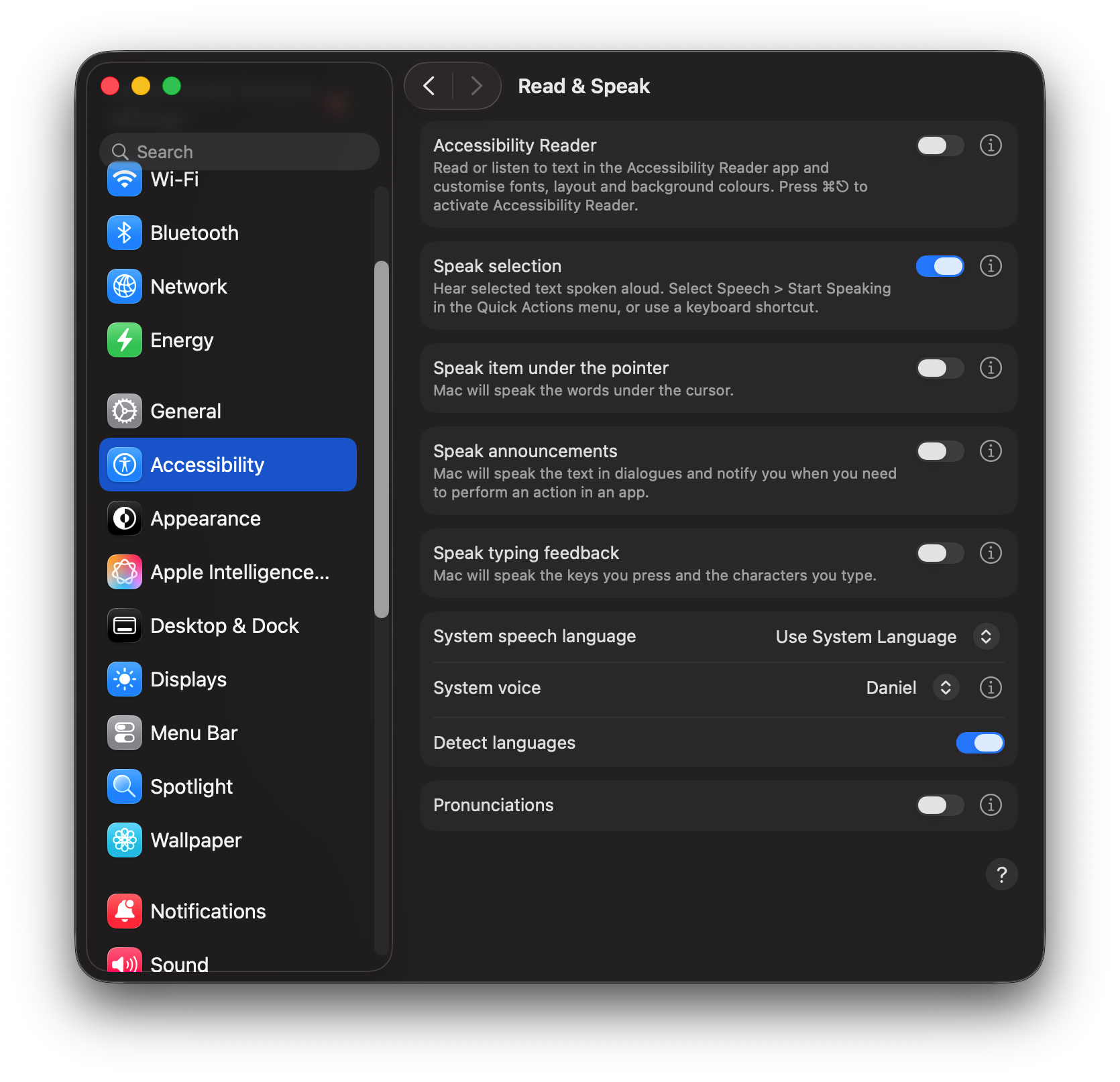
- Open System Settings from the Apple menu.
- Choose Accessibility in the sidebar.
- Select Read and Speak (Spoken Content).
- Enable Speak Selection.
- Highlight text in an app, then press the configured shortcut.
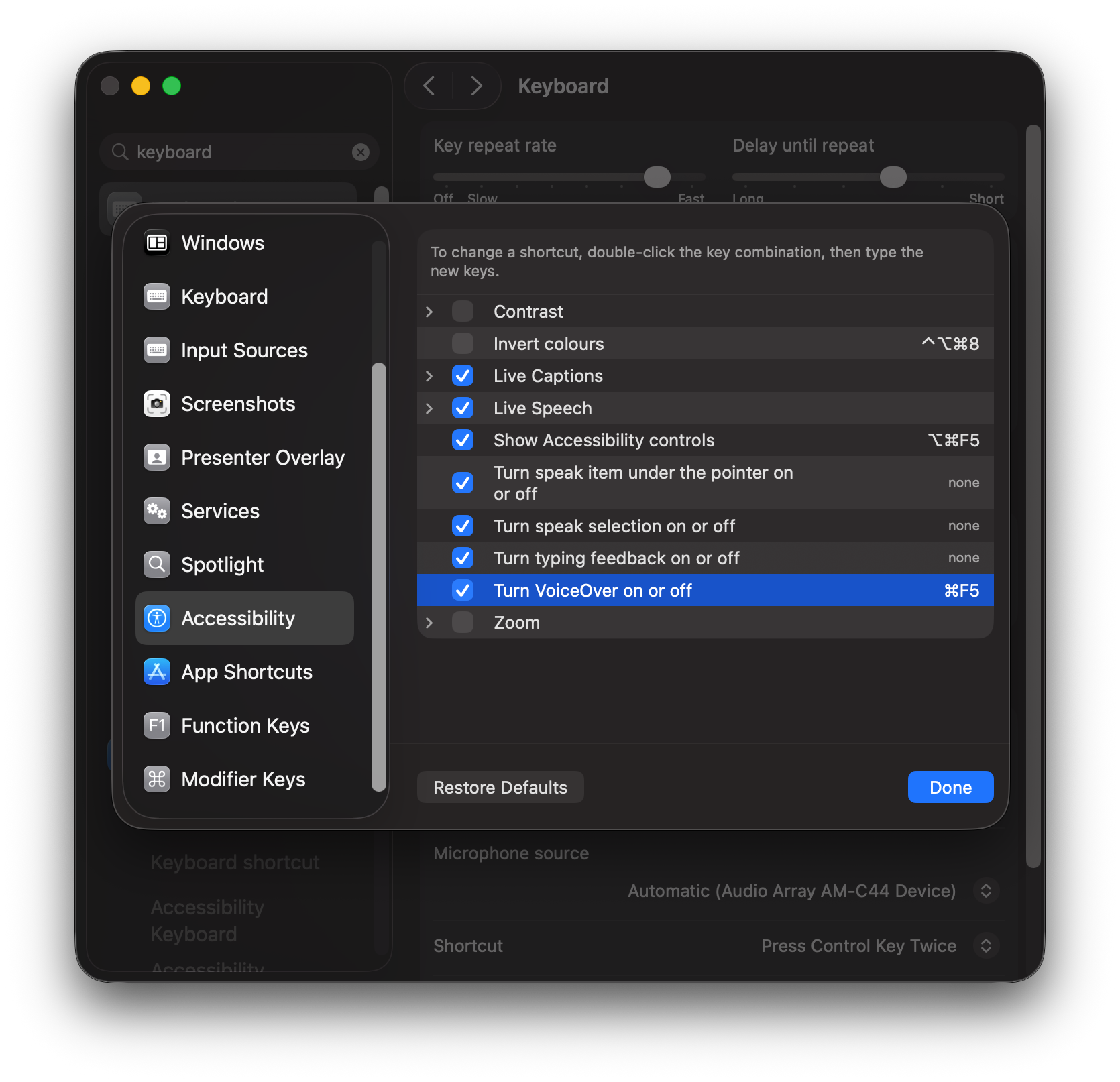
The default shortcut is often Option + Esc. If that conflicts with your workflow, change it to something easier to remember from the same Spoken Content area or from Keyboard Shortcuts under Accessibility.
Customize the shortcut and playback controls
A good shortcut matters more than it sounds. If you plan to use text to speech every day, choose a key combination that is comfortable and does not conflict with writing, design, editing, or development tools.
macOS can also show an onscreen controller while text is being read. The controller gives you quick access to play, pause, stop, skip, and speed controls. It is especially useful for longer documents because you do not have to restart the whole selection every time you want to pause.
For short snippets, the keyboard shortcut is enough. For long documents, turn on the controller so speech feels more like media playback and less like a one-shot command.
Pick a voice and language
macOS includes multiple voices, accents, and languages. Some voices may need to be downloaded before they are available locally. Preview a few options before settling on one, because the best voice for quick system feedback may not be the best voice for listening to a thirty-minute document.
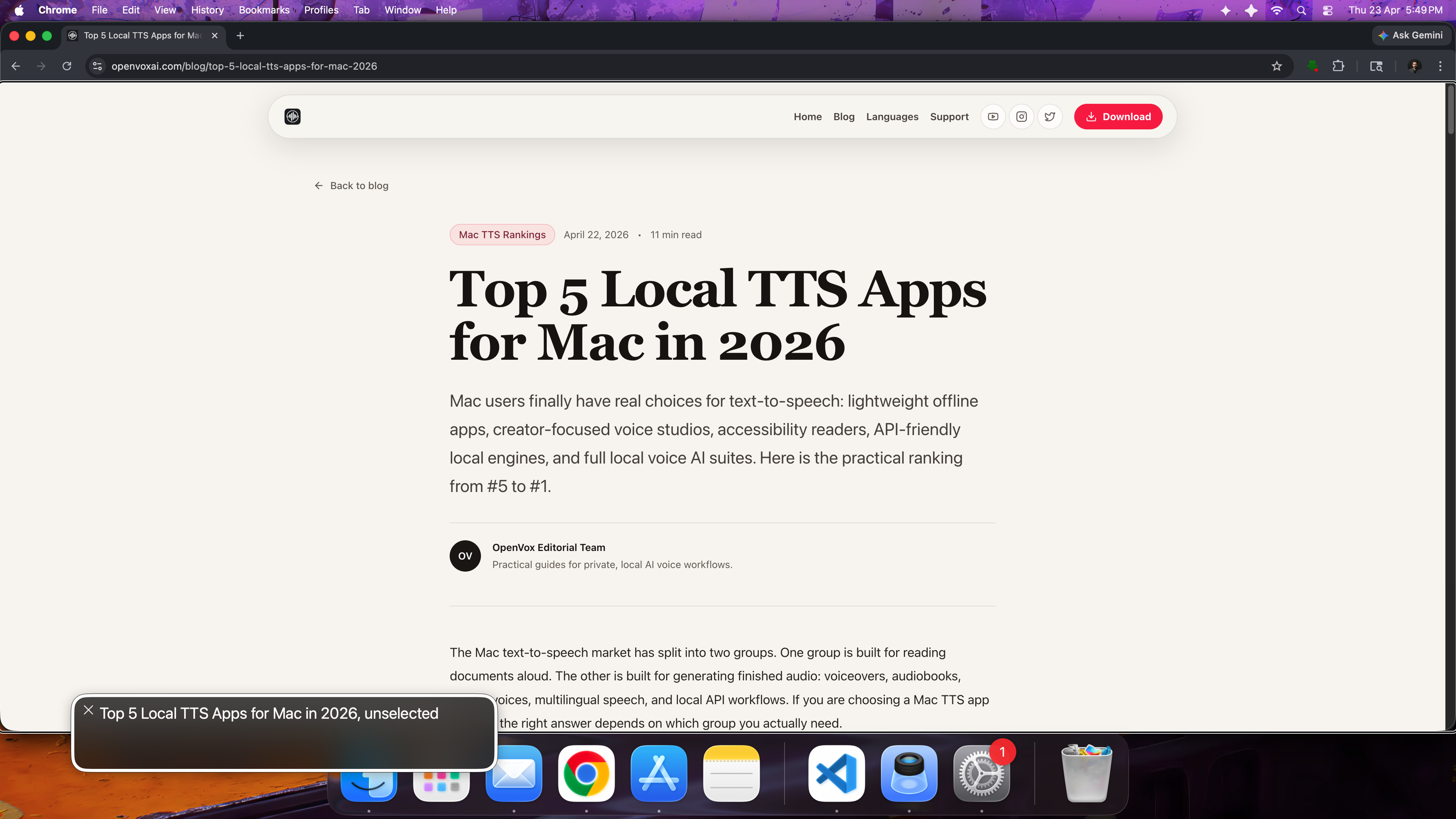
Press the shortcut to activate text-to-speech
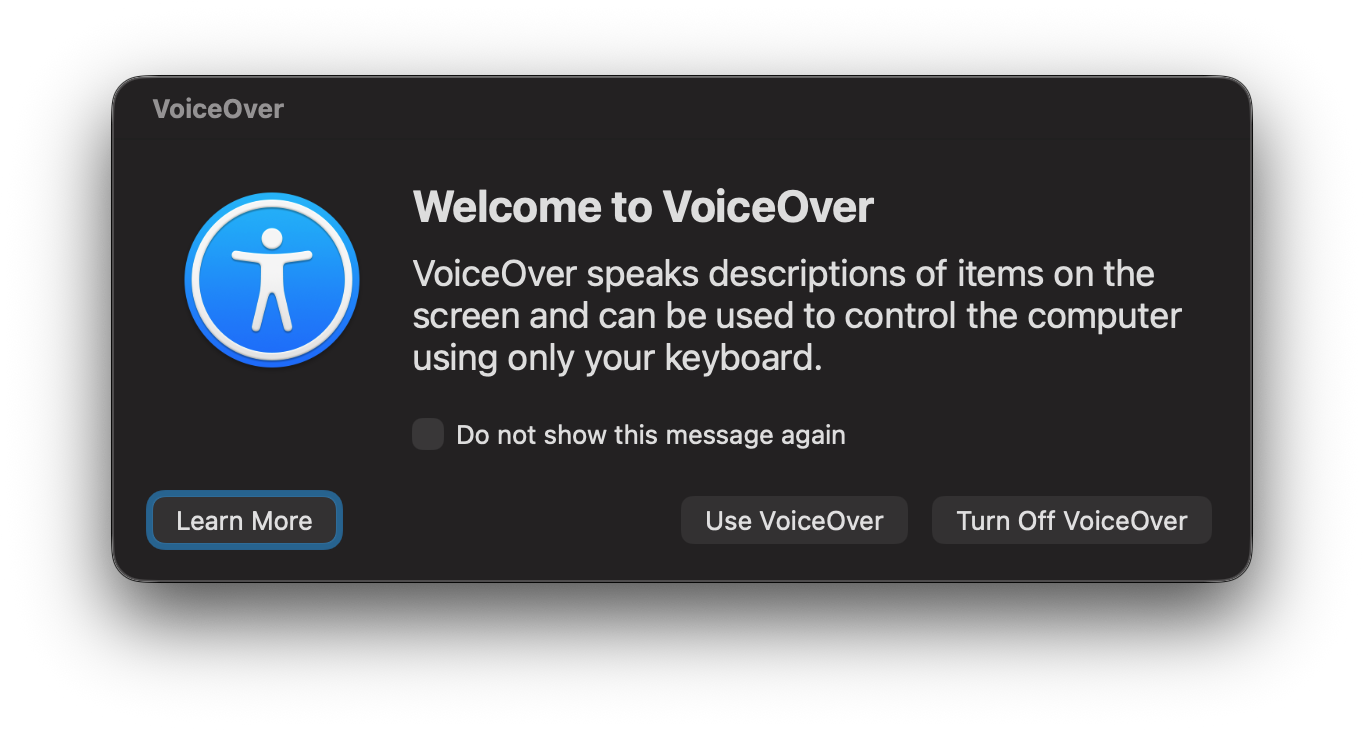
Highlighting spoken content is helpful when you want your eyes and ears working together. You can make macOS highlight words, sentences, or both while the text is read aloud. This is useful for language learning, proofreading, concentration, and accessibility.
Where macOS text to speech works well
Built-in Mac speech is ideal when you need immediate, private, no-setup reading. It is good enough for a large number of everyday workflows, especially when the spoken audio is for you rather than for an audience.
- Listening to selected text in Safari, Mail, Notes, Pages, and many third-party apps.
- Proofreading drafts by hearing sentences out loud.
- Making long articles easier to consume.
- Reducing screen fatigue during research or review.
- Supporting accessibility needs without installing extra software.
When dedicated TTS software makes more sense
macOS spoken content is a system feature. It is not a full voice production workflow. If you are creating audio that other people will hear, or if you need repeatable exports, multiple models, broader language coverage, or more natural voices, dedicated text-to-speech software becomes the better tool.
| Need | Built-in Mac speech | Dedicated TTS app |
|---|---|---|
| Personal reading | Excellent | Also useful, but usually more than you need. |
| Natural voiceovers | Limited | Better voices, model choice, and export controls. |
| Multilingual production | Depends on installed system voices. | Built for broader language and voice workflows. |
| Reusable audio files | Not the main workflow. | Designed for generating, saving, and reusing output. |
| Privacy-sensitive scripts | Good for local playback. | Best when the app runs models locally on your Mac. |
Why OpenVox is different from a basic Mac voice feature
If you need a higher-quality local production workflow, OpenVox includes MOSS TTS 1.5 for Mac. It is designed for studio-grade 48 kHz narration, multilingual synthesis, voice cloning, and long-form output rather than quick accessibility reading.
OpenVox is designed for people who want local speech generation to behave like a real creative and production tool. Instead of relying only on the system voice, you can work with local TTS models built for different strengths: broad language coverage, fast everyday generation, expressive voices, and more advanced voice design.
That matters when the speech is not just a convenience feature. A creator may need narration for videos. A developer may need test audio for a voice agent. A team may need to evaluate several languages without sending every script through a cloud service. In those cases, the built-in Mac feature is a starting point, not the destination.
If you only need your Mac to read a paragraph back to you, use the built-in feature. If you need speech you can publish, compare, export, and control, use dedicated TTS software.
Practical recommendation
Start with macOS Spoken Content if your goal is personal reading, accessibility, or quick proofreading. It is already on your Mac, and it is good at those jobs. Spend ten minutes choosing a voice, setting a shortcut, and adjusting the speaking rate. That alone can make your computer much more useful.
Move to a dedicated local TTS app when voice quality, export control, language choice, repeatability, or privacy becomes important to the finished work. That is where OpenVox fits: it gives you a Mac-native place to generate speech locally, test different models, and turn text into audio without making every sentence depend on a recurring cloud workflow.
Final thoughts
Text to speech on Mac is simple to enable, but the right setup depends on what you are trying to do. For reading and accessibility, Apple's built-in tools are a strong first step. For creators, developers, educators, and teams that need better voices or reusable audio, dedicated software is the more capable path.
The useful way to think about it is this: macOS helps your Mac read to you. OpenVox helps your Mac create speech you can actually use.